June 29, 2018
Friday Feature Focus - Client History Tab


As I’m sure you could have guessed, the Client History Tab is a great place to keep track of the history for your clients. You can access a client’s “History” by navigating to the profile page and looking for the “History” tab.
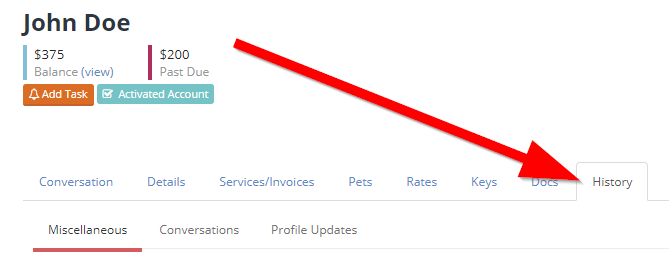
You’ll notice that when you navigate to the Client’s History tab - you’ll see three additional tabs. These include “Miscellaneous”, “Conversations” and “Profile Updates”. If you’ve enabled Private Messages for your company - you’ll see a fourth tab called “Private Messages”.

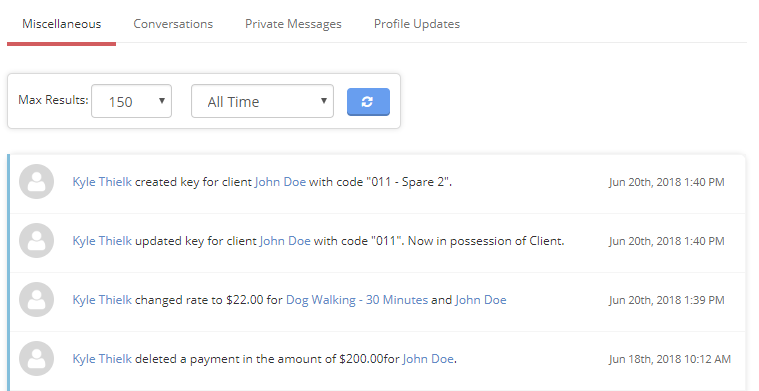
Each section will provide a detailed breakdown of all of the actions taken in a client’s profile. Let’s first review the Miscellaneous section. Actions taken that are “general” (or actions that don’t fit in the other sections) are listed here. For example - If you use the “Login as Client” tool, set a custom rate for the client, create a key, change the status of a template, the client requests new services, or many other actions will all be listed here. Here is an example of some of these.
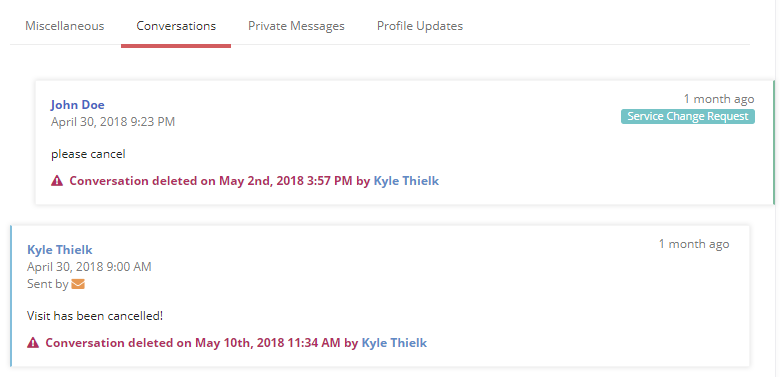
Next up is the Conversations tab. You can always review all messages sent to and from the client in their main Conversation Feed but sometimes - you may want to see what messages were deleted from the main Conversation Feed. All of those deleted messages will be visible here. Keep in mind that these deleted messages are not visible by your staff or your client.
If you have enabled Private Messages (which can be enabled in Portal Settings) - you will see another section for Private Messages. This works very similar to the Conversations tab as it will show you any deleted messages from the Private channel.
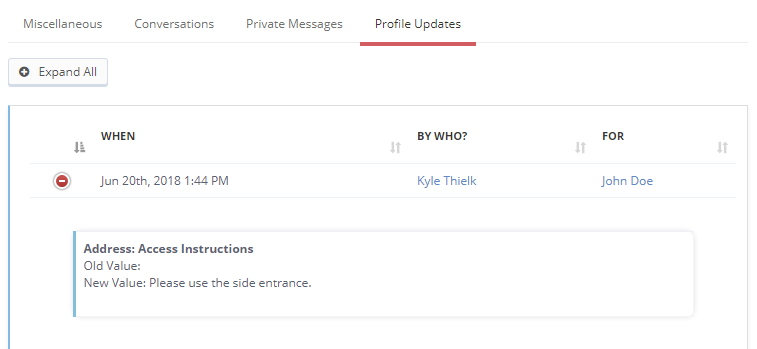
Lastly is the Profile Updates tab. This section will show you all of the updates made to a client’s profile (including their pets). Time To Pet will show you who made the update, when the update was made and what was changed. Just click the “+” icon next to each change to see the details.
Keeping track of changes, adjustments and updates to your client’s account is simple using the Client’s History Tab!
All-in-one pet care software trusted by 5,000+ businesses worldwide.