June 9, 2017
Friday Feature Focus - Configuring the Home Screen


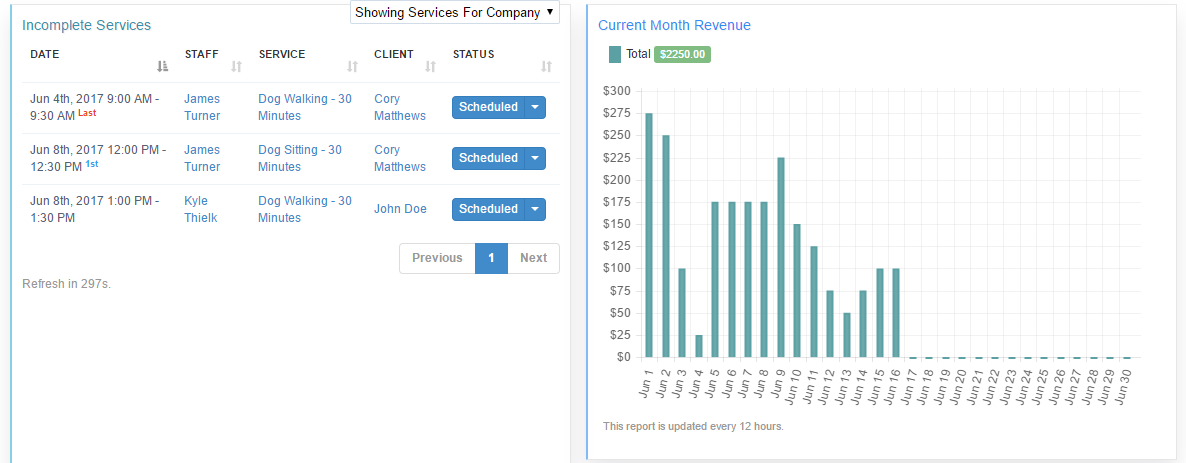
Each and every business that utilizes Time To Pet is different. Different locations, different services, different goals --- just different. The type of information each one of our customers use on a daily basis is different too. That's why we've built customizable widgets that you can set on your home screen! If you want to see revenue data --- you can configure your home screen to show you that. Want to see a list of Past Due Invoices? You can add that too!
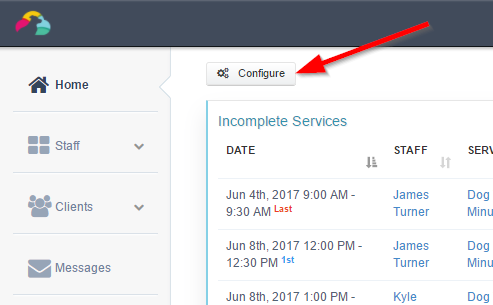
If you want to explore the different widgets we offer and make some adjustments to what information you see on your home screen --- click the "Configure" button found at the top left of the screen:
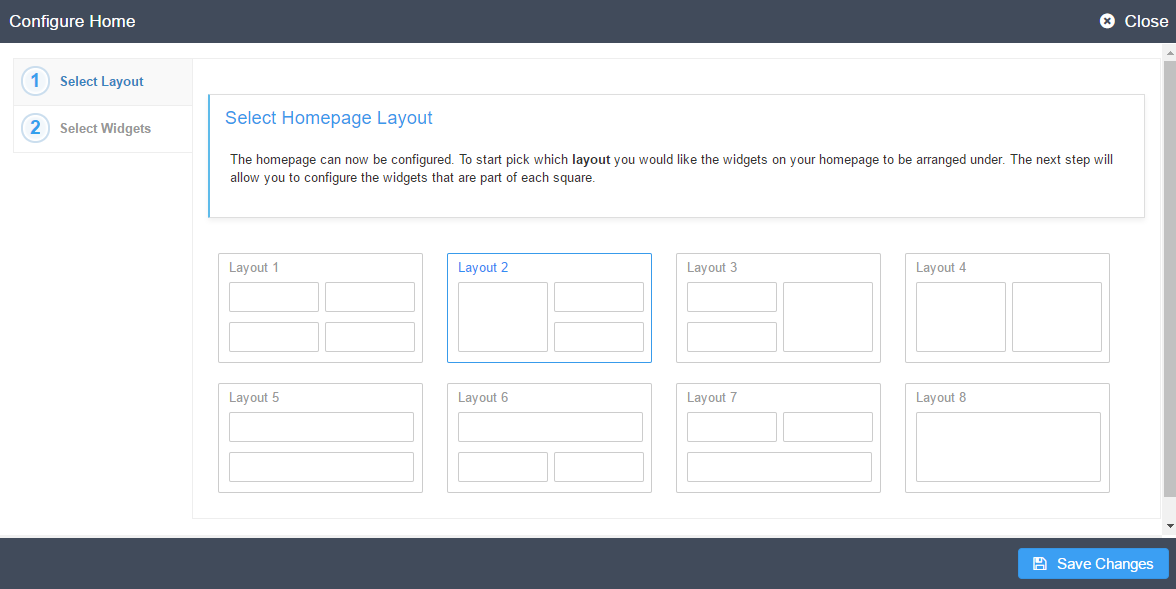
You can choose one of 8 layouts for your home screen:
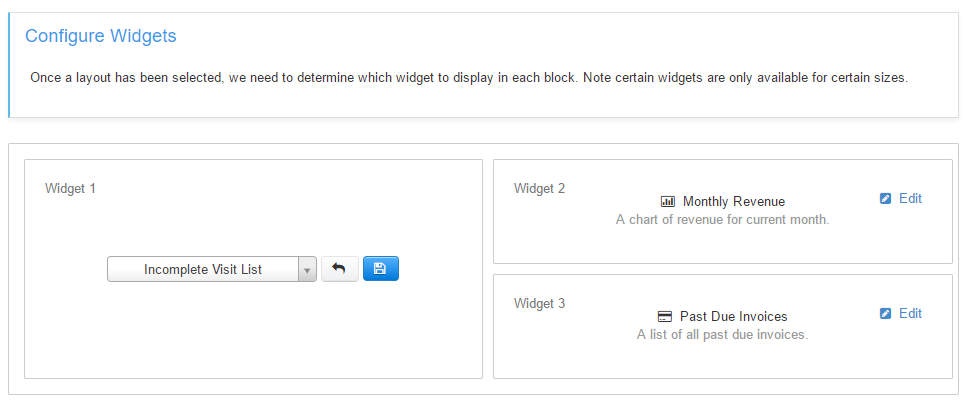
Each layout ranges from 1 to 4 widgets. After selecting your layout, you can edit each widget:
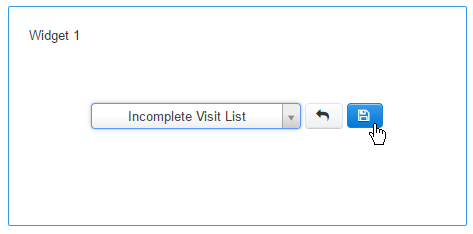
You may want to explore what widget works best for your business by trial and error. After selecting a widget, click the floppy disk icon to save it:
After selecting all your widgets, be sure to save changes.

Now you have easy access to the data you need to manage your business!
All-in-one pet care software trusted by 5,000+ businesses worldwide.