October 6, 2017
Friday Feature Focus - Locked Invoices


Getting paid is an essential part of owning a business. Here at Time To Pet --- we believe that your pet sitting software should make the process as simple as possible. That's why we link invoicing directly with scheduling. When scheduled events are created, the invoice is automatically generated. It makes the process much simpler. Need to delete an event? You can delete it off your schedule and it's automatically removed from the invoice. But what about when you want to make sure events are not adjusted? That is where Locked Invoices come in!
Locked Invoices is a tool to help you prevent any mistakes. Locking an invoice will prevent any events associated with that invoice to be adjusted. Why lock an invoice? Well --- there are two main scenarios.
#1 --- Lock an invoice after a payment is made
After your customer makes a payment to an invoice --- you may want to lock it to ensure that you don't make any additional changes to the invoice. Remember that invoices are intrinsically linked to scheduled events so if you remove those events from the Schedule --- they will be removed from that "Paid" invoice as well.
#2 --- Lock an invoice after emailing it your client
When you email an invoice to a client --- Time To Pet will include a PDF attachment to that email with the invoice. While the schedule (and invoices) in Time To Pet are "live" (making changes will automatically update the invoice), a PDF attachment is not. Let's say you email an invoice to a client and they print the PDF. You then make changes to their events that increases their invoice by $100. The client may still have that old invoice and not leave enough money.
Invoices can be locked in two ways. Either automatically or manually. The rules to automatically lock invoices can be found in Invoice Settings.
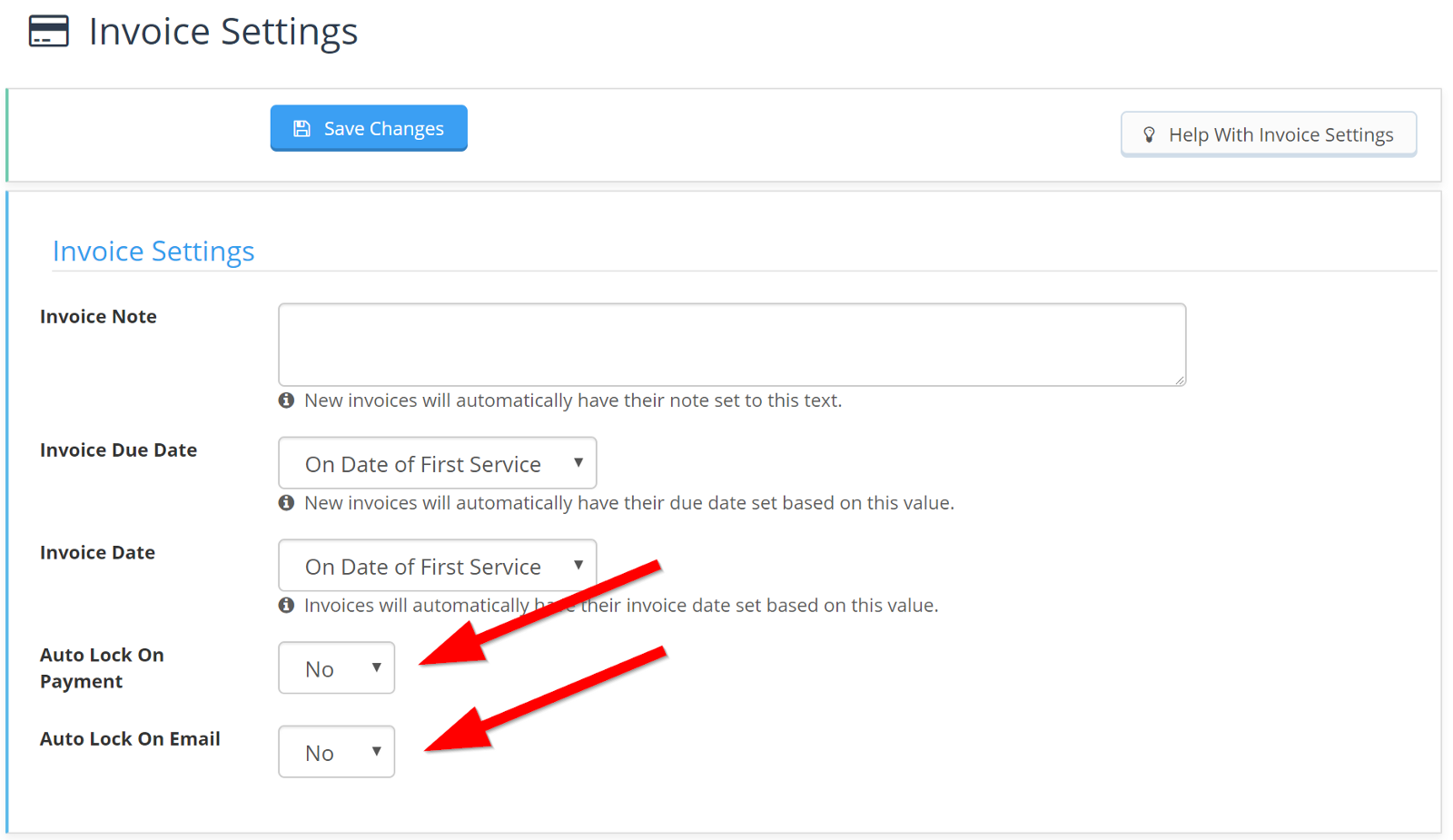
Setting "Auto Lock On Payment" will lock an invoice as soon as a payment is made. Setting "Auto Lock On Email" will lock the invoice when it is emailed to your client.
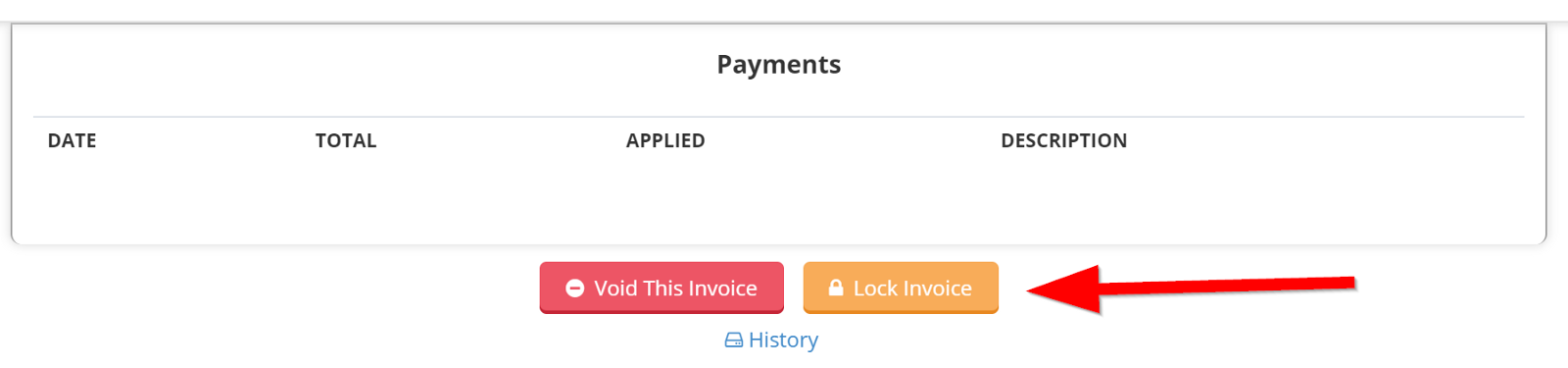
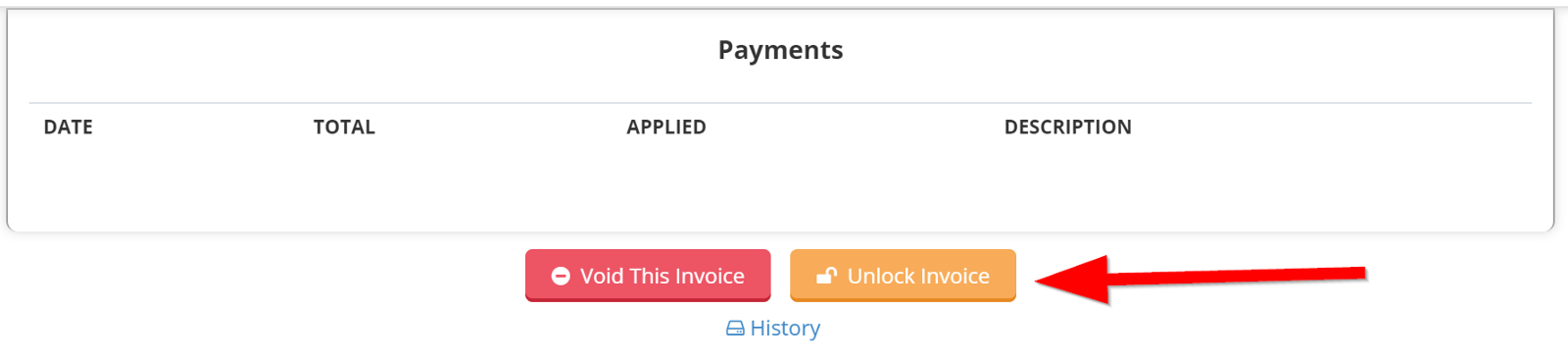
You can manually lock an invoice by navigating to the "Edit Invoice" screen. Just scroll to the bottom of the screen and find the "Lock Invoice" button next to "Void".
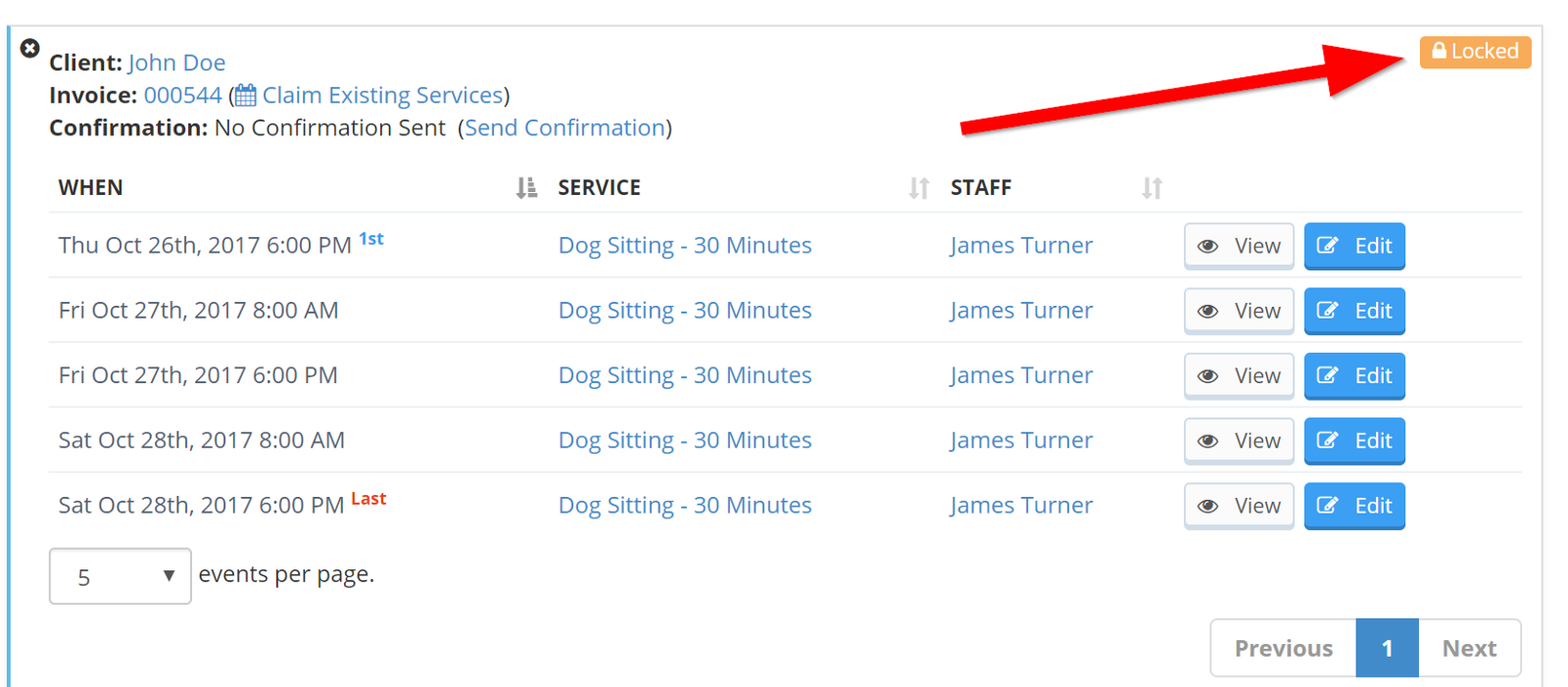
When an invoice is locked --- Time To Pet will show you a "Locked" icon on the Schedule where the "Add New Services" button usually is.
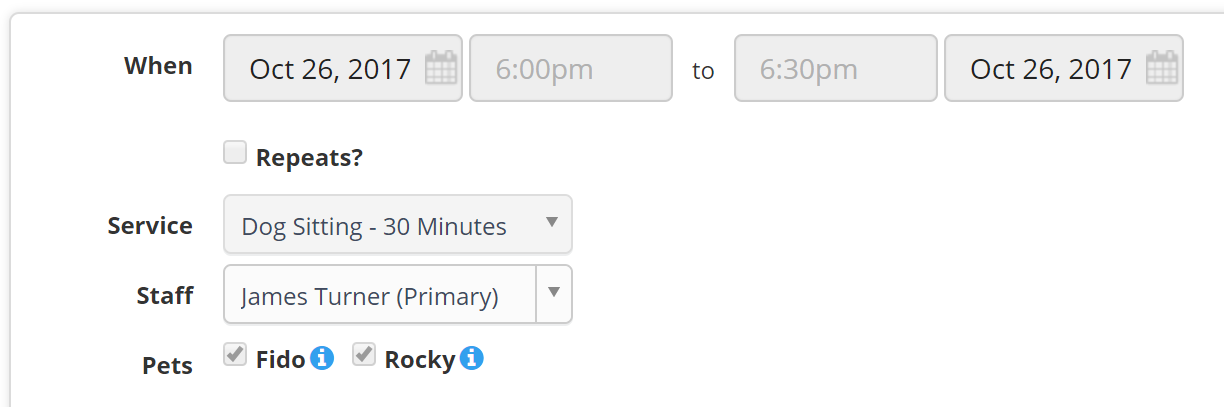
If you try and edit any of the events --- you will see that they are all grayed out.
Now that we've reviewed Locked Invoices --- what happens when you need to unlock an invoice? It's simple! You can click the gold "Locked" button on the Scheduler page and Time To Pet will ask if you want to unlock the invoice.
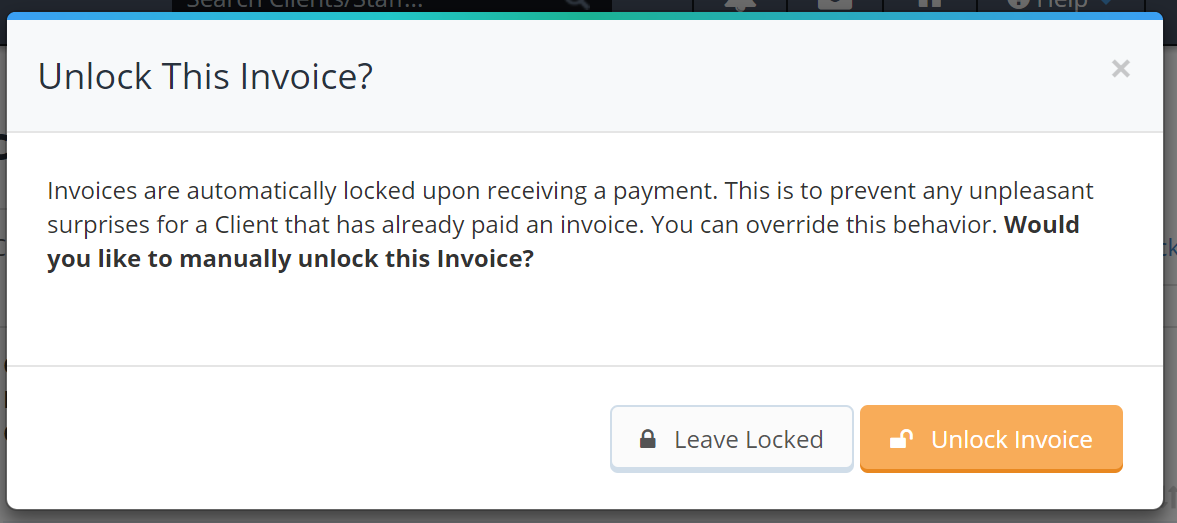
If you navigate back to the Edit Invoice screen --- you can also unlock an invoice by clicking the same button used to lock it.
Be sure to also check out our help article on Locked Invoices as well!
All-in-one pet care software trusted by 5,000+ businesses worldwide.