April 14, 2017
Friday Feature Focus - Non-Client Tasks


Last week --- we started the conversation about Tasks and how you can add a Task directly to a client's profile. This week --- we will expand on Tasks and show you how you can create a Non-Client Task. This is simply a task that is not associated with any client in particular.
All Tasks will be stored in the Tasks section in Time To Pet. You can navigate here by clicking the Task Icon on the dashboard (the Bell) and then selecting "View All Tasks".
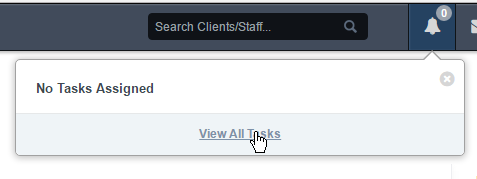
Tasks can be sorted to show just Tasks assigned to you or tasks assigned to All Staff. You can also sort by Complete, Incomplete or All Tasks.

To add a Non-Client Task --- select the "Add Task" button. You can leave the client field as "No Particular Client" (unless you did want to choose the client this task was assigned to), you can assign this task to a specific admin or office manager, you can add your description and you can include an optional due date.
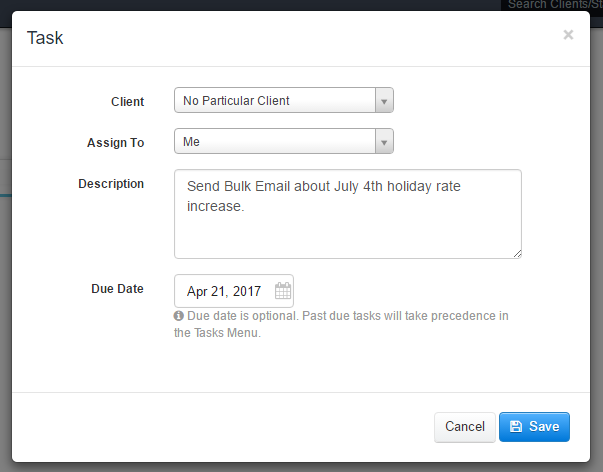
After saving, your Task will now be listed. If you want to mark it as Complete (or edit it) --- you can simply click on the Task.

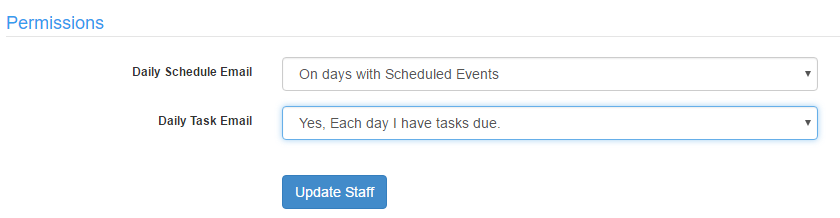
To help you remember all of your Tasks --- you can enable a "Daily Task Email" that will list all of your open tasks. This can be found by editing your profile, scrolling to the bottom of the page and adjust your Daily Task reminder email.
As a reminder --- be sure to check out our help article about Tasks for some additional info!
All-in-one pet care software trusted by 5,000+ businesses worldwide.