July 13, 2018
Friday Feature Focus - View Time Off on Scheduler


In this week’s Friday Feature Focus - we are highlighting a great (and sometimes overlooked) little feature in Time To Pet. It is the ability to show your entire Company Time Off calendar right on your main Scheduler page.
The main benefits of showing Company Time Off on the Scheduler is to make it easier to see which pet sitters and dog walkers are available without having to jump back and forth to the main Time Off calendar.
To toggle the Company Time Off view, first navigate to your main Scheduler page. When you first navigate to the Scheduler, you’ll see all of your scheduled events on the calendar but none of your staff member’s time off.
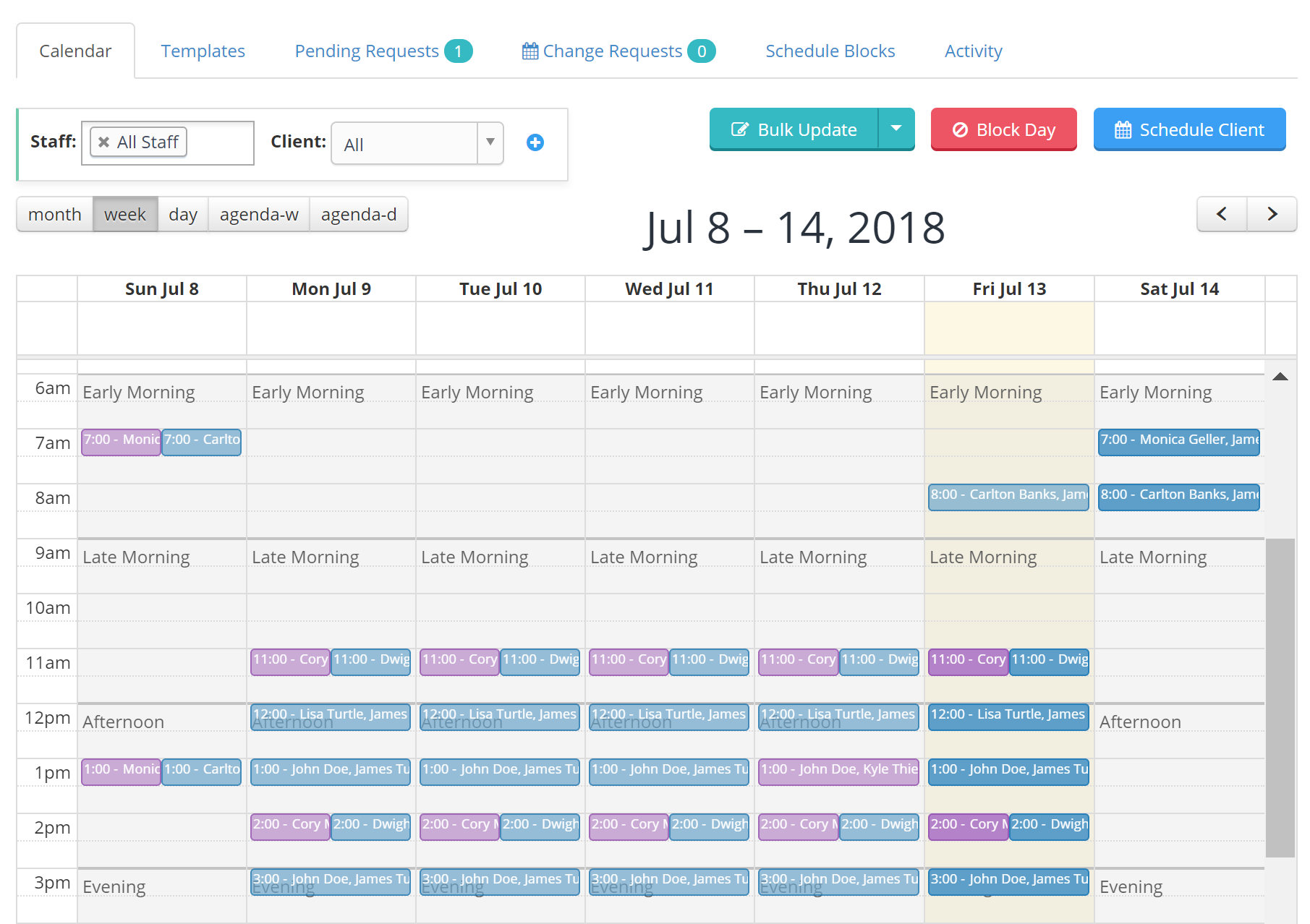
To show staff time off on the calendar, first look for the window at the top of the calendar that includes the staff and client drop downs. You’ll notice a blue “+” icon inside of this window.

If you click the blue “+” - Time To Pet will expand that window and provide you a few additional options including a service dropdown, a “Conflict Mode” button and a check box for “Time Off”.
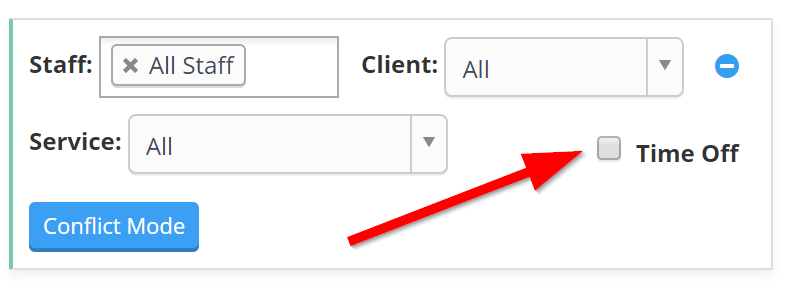
If you click the check box, you’ll now see that your staff Time Off is showing on your calendar!
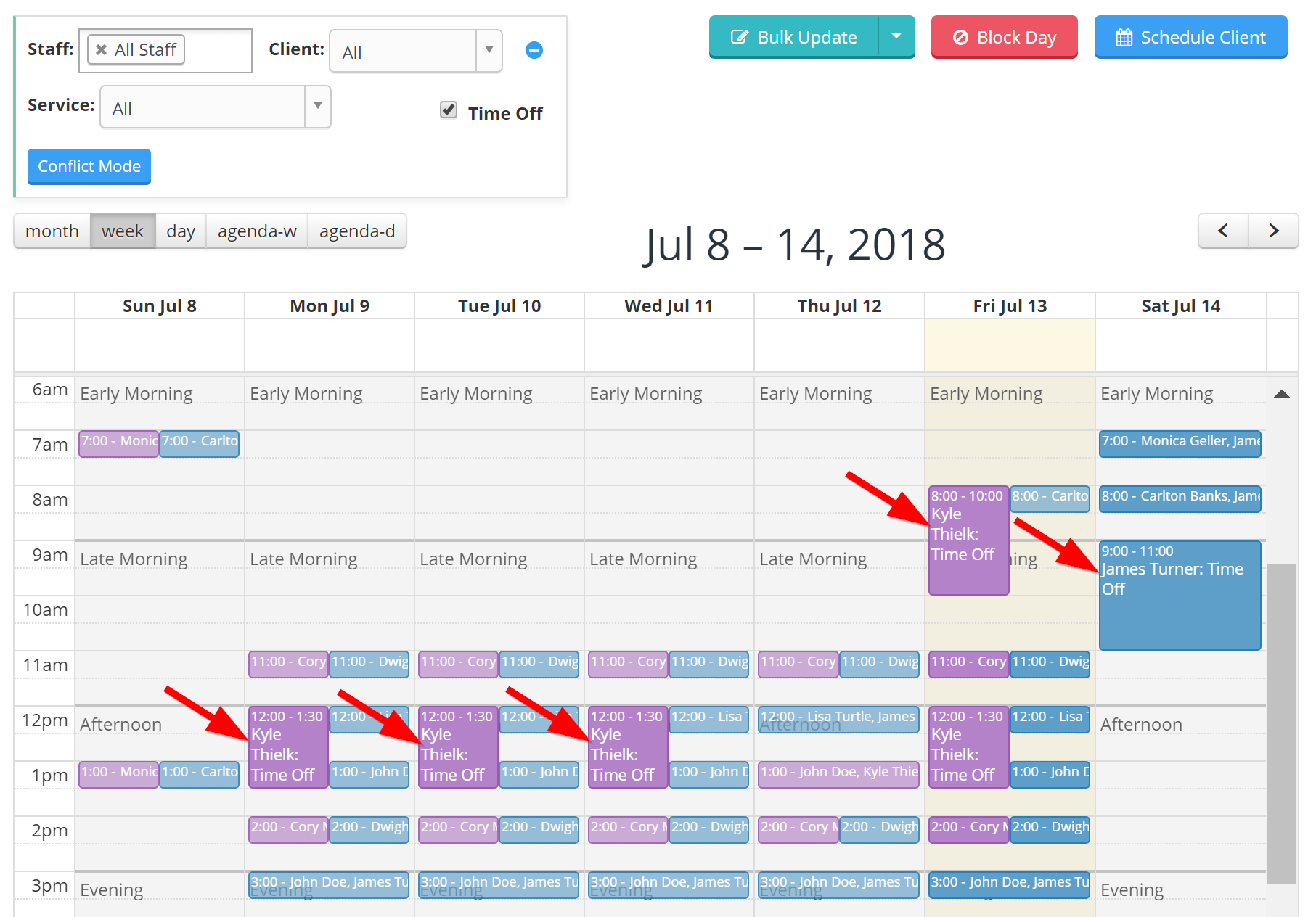
Time To Pet will retain your “View Time Off” settings so if you navigate away from the Scheduler page and return later, the Time Off will still be visible. If you no longer want the Time Off to be visible, simply uncheck the Time Off check box.
You can also click on any of the “Time Off” events on your Scheduler to see if there are any notes associated with that time off. If you wanted to narrow your calendar down to just see events for one staff member using the staff drop down - you can do so and the time off for that staff will still be shown on the calendar as well! This a great tool to help see if there are any conflicts. You can always use the “Conflict Mode” button for this too!
Have a great weekend and hopefully you and your staff members get to take some time off soon!
All-in-one pet care software trusted by 5,000+ businesses worldwide.