March 1, 2017
Table of contents
Today we are happy to announce a number of enhancements related to Client Service Requests.
Splitting a Pending Request
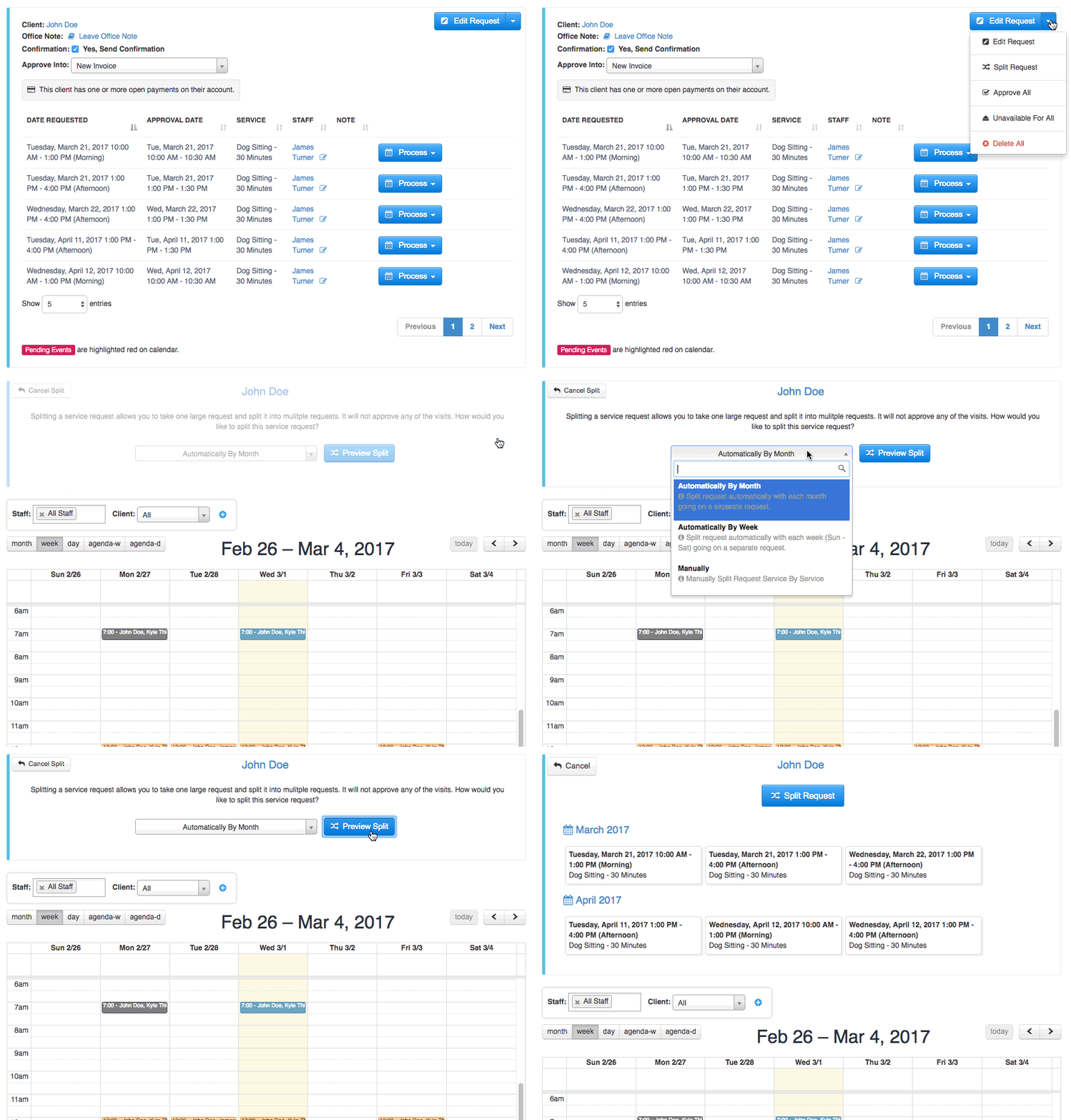
Automatically split a request by month.
By default Time To Pet will group all Pending Requests by a client onto one Invoice for ease of processing and to avoid making any assumptions about your or your Client's preferred billing cycle.
If your client has requested multiple distinct trips it can often make sense to split the trips into multiple separate requests (and thus separate Invoices). With the Split Request tool this is now incredibly easy.
For more information on how to use this tool see our help article: Splitting a Pending Request
Delete All Services
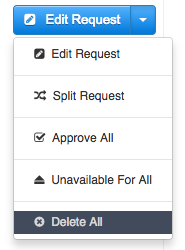
You can approve all, mark all as unavailable and now you can delete all remaining services in the current request. Remember services marked as unavailable will be included in the emailed confirmation, deleted services will not.
Clearer Schedule Requests for Client
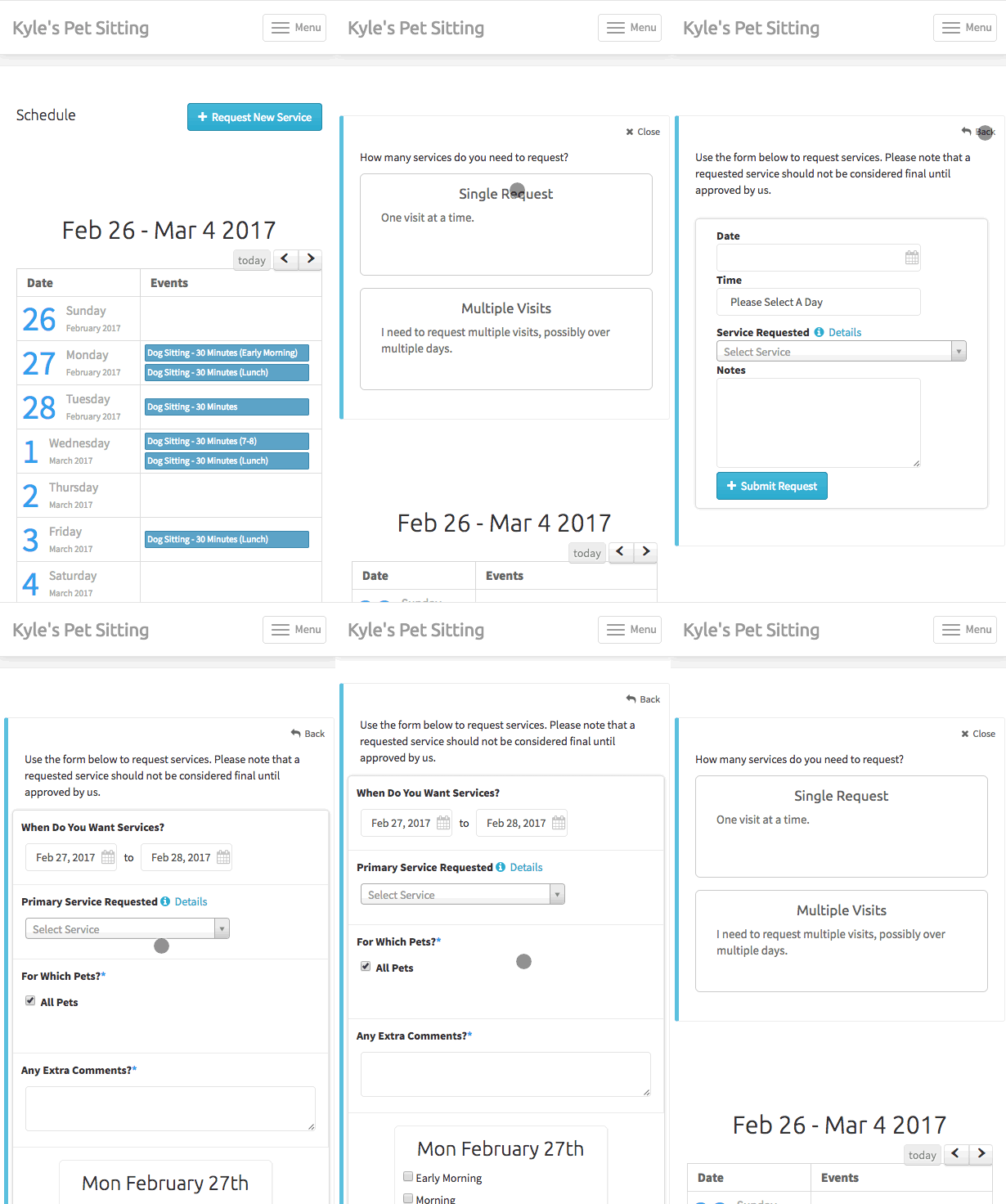
Previously when requesting visits --- your Clients were brought to the Single Visit screen and they had to click a small link to navigate to the Multiple Visits screen.
Now when requesting services through the Portal, your Clients will first be presented with a 'splash screen' asking them which type of request they plan to make (Single or Multiple Visit request).
Customize Client Welcome Email When Manually Sending
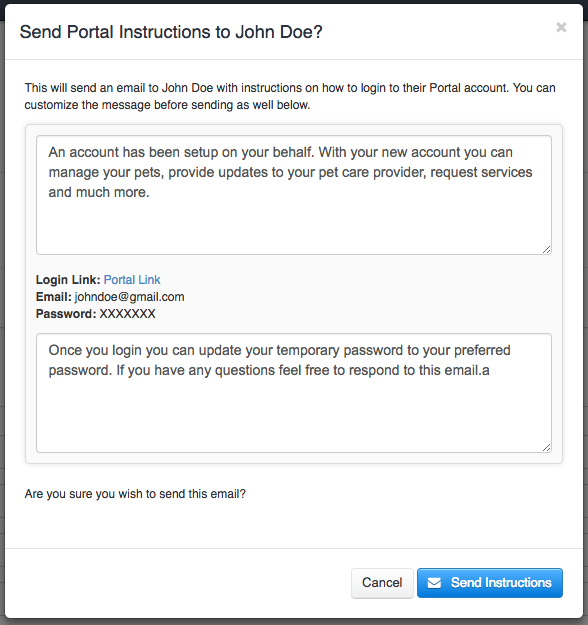
You can customize the email we send to your Clients when you first add them via the "Add New Client" form from Settings > Language.
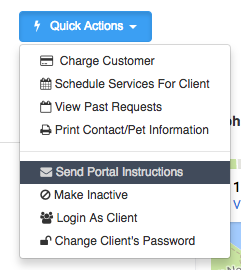
If you often find yourself wanting to customize this message on a client by client basis, today is your lucky day! When manually triggering this email from the Client's Profile > Quick Actions > Send Portal Instructions you can customize the message before sending.