June 15, 2018
Table of contents
Happy Friday! We are finishing off the week with two big updates. First is the ability to view “System Notification” messages directly inside of a client’s conversation feed. Some common feedback we get from our clients is about making it simpler to see invoices that were emailed to clients or confirmation emails sent to their customers. “System Notifications” will do just that! You’ll notice that a System Notification will be included in a client’s conversation feed every time you email them an invoice, send them a schedule confirmation or if a payment is submitted.
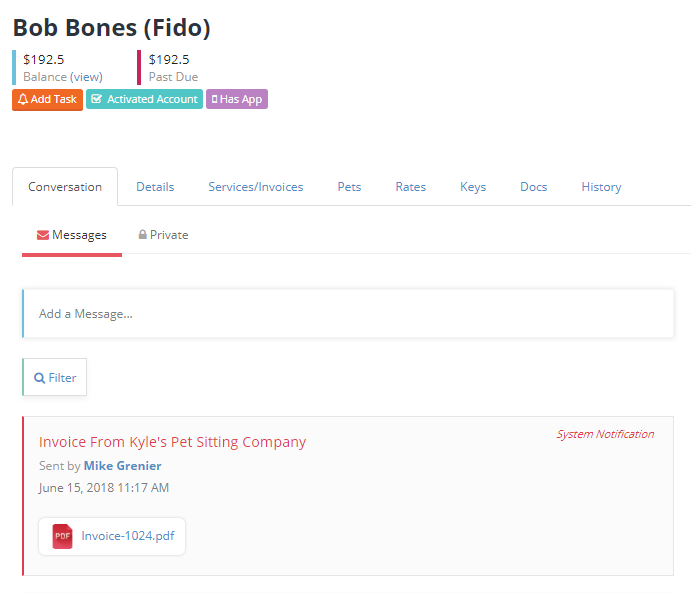
You can click on the red text (the subject) and Time To Pet will load the exact email that was sent to your client.
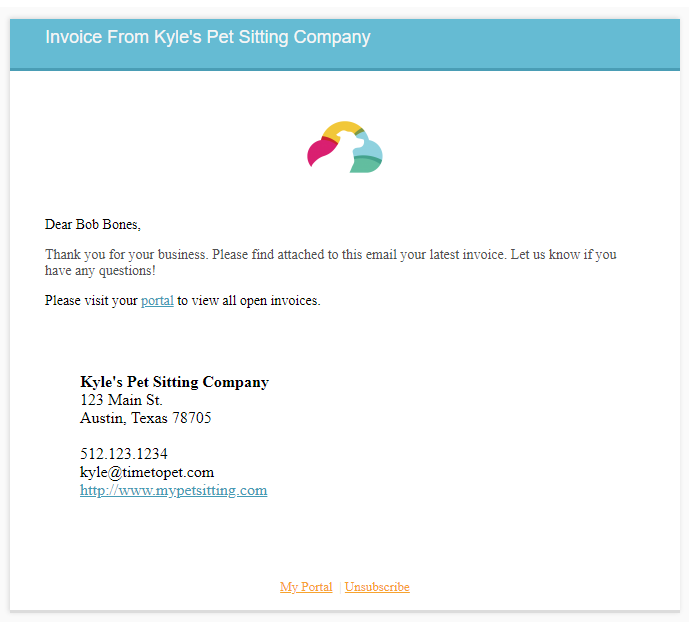
System Notification messages are only visible by your Admin team and certain Office Managers with the correct permissions set (like the ability to manage invoicing).
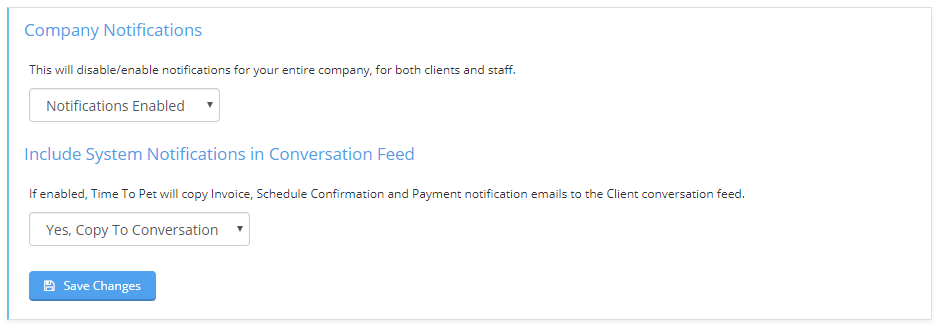
System Notifications are enabled by default, but if you’d like to - you can disable this in in the Company Notifications section in Settings.
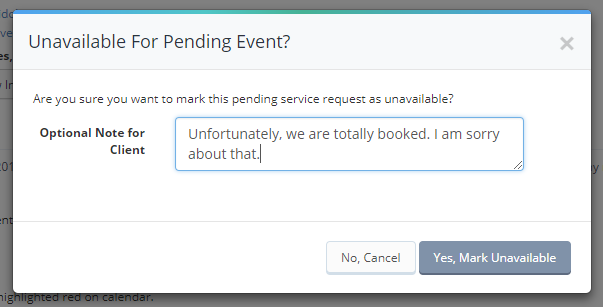
We’ve also added an additional column in the “View Past Requests” section of a client’s profile that will show you any “Unavailable Notes” that you may have sent them. As a quick refresher - when a client submits a service order request and you don’t have any availability, you can mark the event as “unavailable”.

And you can also send a note explaining why you are unavailable.
Now, if you navigate to the “View Past Requests” section, you’ll see the exact note that you created when you marked a requested event (or events) as “unavailable”.
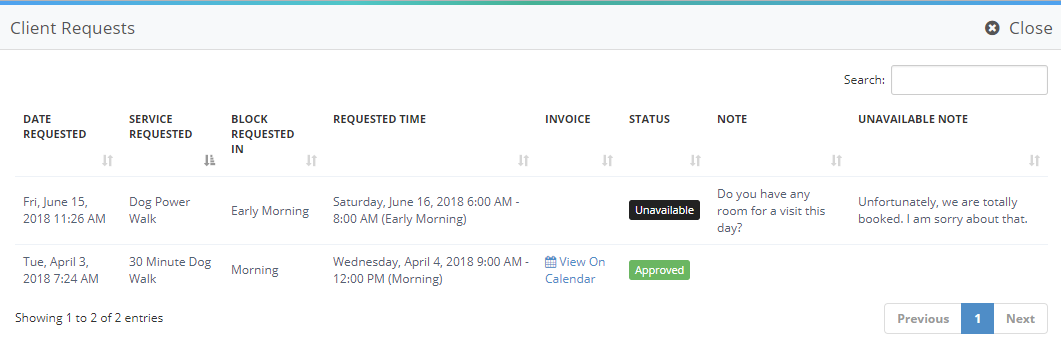
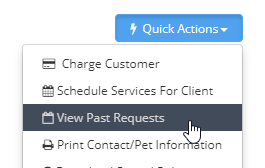
As as a reminder - the “View Past Requests” section is where you can see all of the service order requests a client has submitted. You can navigate here by clicking the blue “Quick Actions” button on a client’s profile page.