August 18, 2017
Friday Feature Focus - Bulk Email Staff


We highlighted our Bulk Email Clients feature about a year ago but today, we will be highlighting the Bulk Email Staff feature. Bulk Emailing Staff is very similar to the Bulk Email Client feature with one major difference. You are sending the email to your staff members!
Bulk Email Staff is a very handy feature that allows you to send emails to all (or some) staff members at once. Worried about some serious weather headed your way? Or have an important company announcement to share with your team? Or maybe you have a new customer who is looking for some overnight care? Using the Bulk Email Staff tool is perfect for these situations!
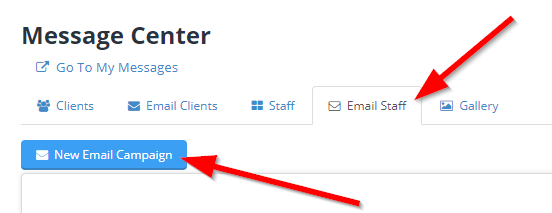
You can create a new Email Campaign in the Message Center. Just click the Email Staff tab and then click "New Email Campaign":
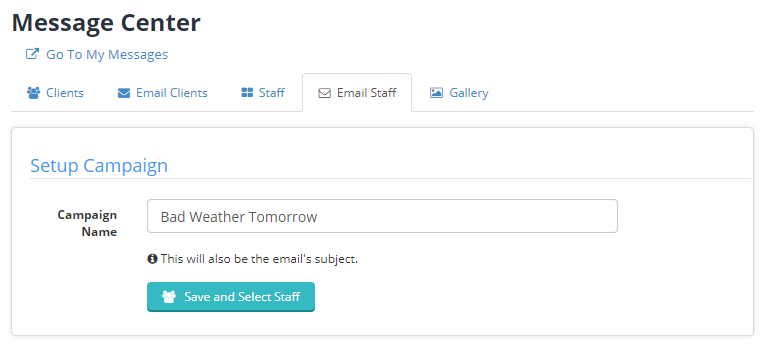
Next, set your Campaign Name. This will also be the Subject Line for the email:
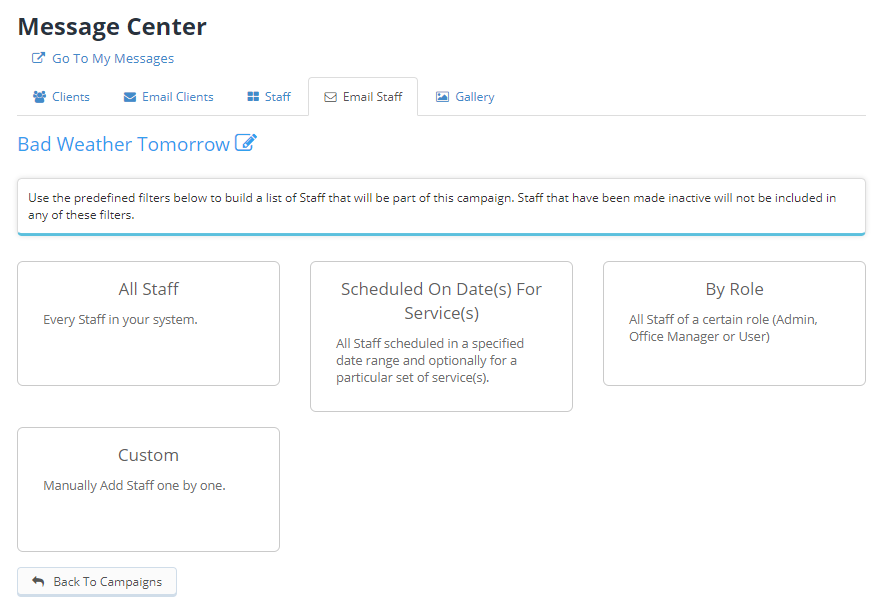
You can select some pre-defined filters to populate your email list. This includes all of your staff, just staff scheduled on certain dates or for certain services, staff members by their role or you can create a custom list:
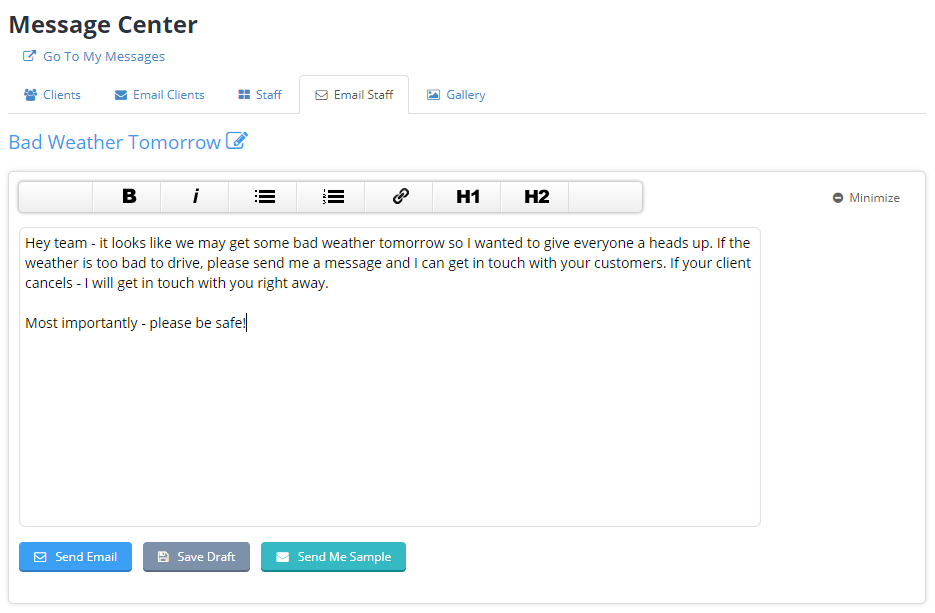
After selecting your staff, you can start to write your message:
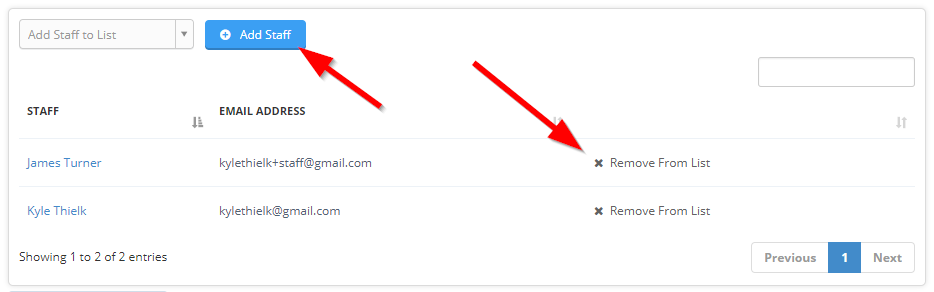
The bottom half of this screen allows you to customize the list of staff that are included in the email list. You can remove staff or add staff right from here:
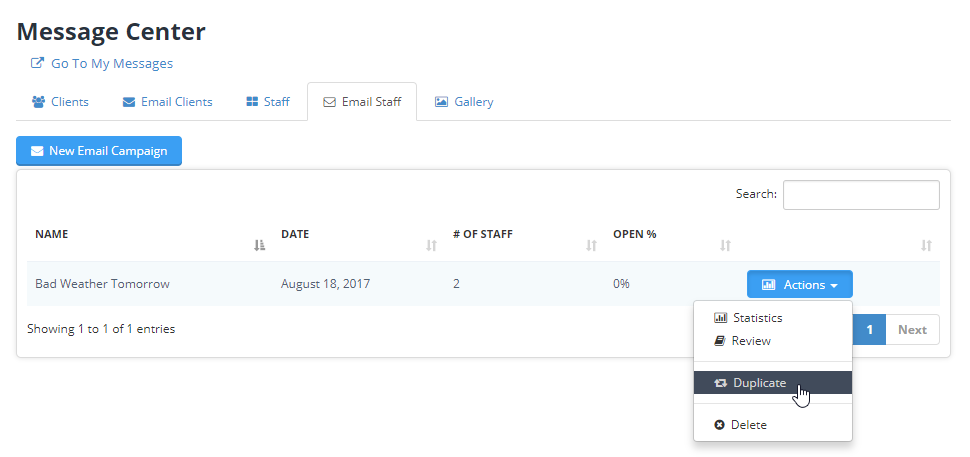
Lastly --- it's time to send the message! You can send the email to yourself as a sample first, save it as a draft or finalize and send it. Looking for a quick pro tip? If you send the same email over and over, you can duplicate an existing campaign instead of having to re-create it. Just click the Actions button next to the Campaign you'd like to duplicate in the Message Center and click "Duplicate". This is also where you can see all the data for that campaign:
All-in-one pet care software trusted by 5,000+ businesses worldwide.